Understanding your results
Reading the analysis report - from the strategic briefing to individual findings and evidence.
After the analysis finishes, click the bid name in the sidebar or use View Results on the Analyze Bids page to see the full report.
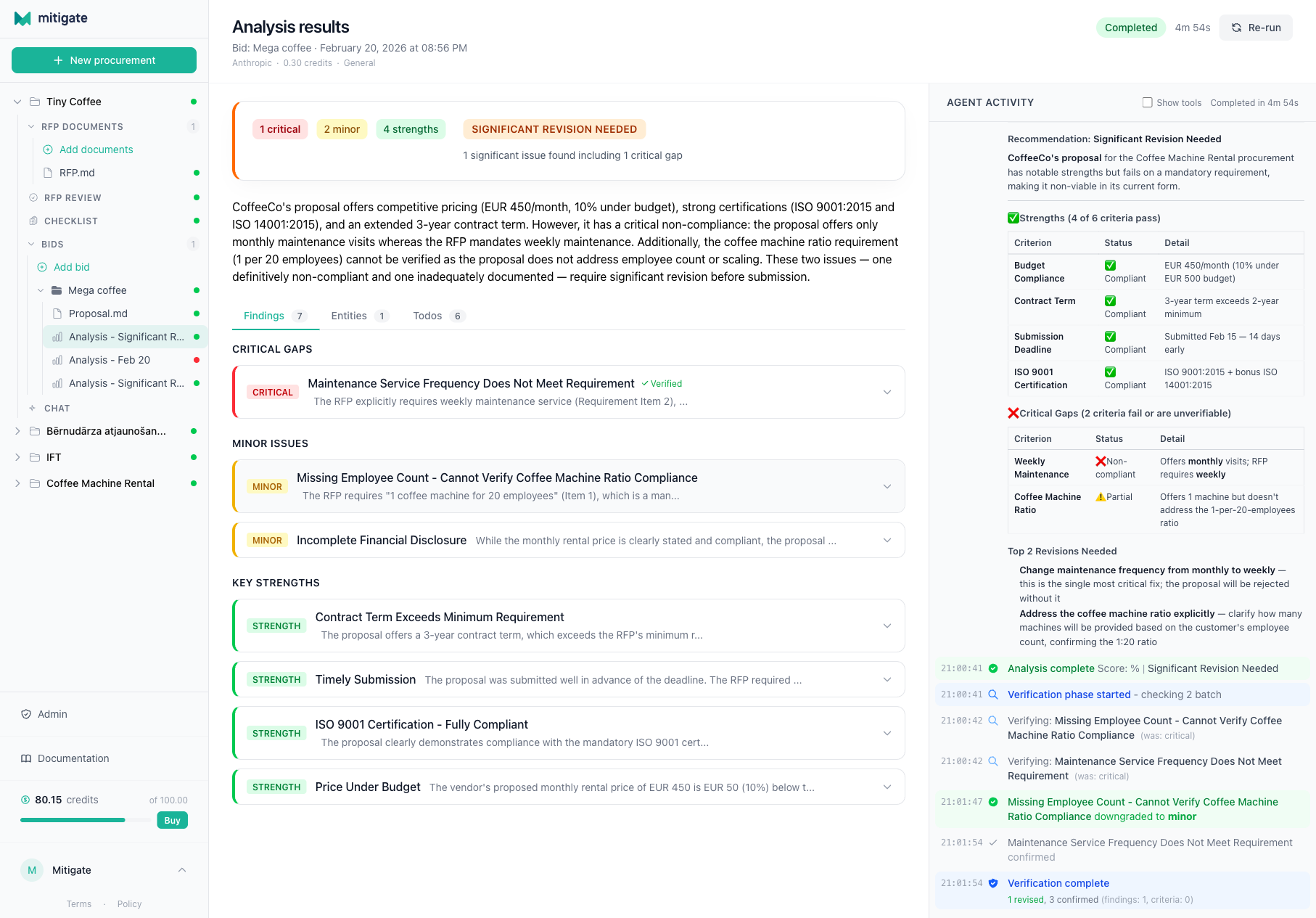
The results page has a two-panel layout: the analysis report on the left and the agent activity feed on the right.
Strategic briefing
This is at the top of the results page. It gives you three things:
-
A recommendation - one of four levels:
- Strong Submit - the proposal looks solid, minor or no issues found
- Submit with Improvements - the proposal is decent but has gaps that should be addressed
- Significant Revision Needed - serious problems were found, submitting as-is is risky
- Do Not Submit - critical compliance failures, likely to be rejected
-
Finding counts - how many findings at each severity level (e.g., 2 Critical, 5 Major, 8 Minor, 4 Strengths)
-
Summary - a few paragraphs explaining the overall assessment in plain language
Start here. If the recommendation is "Strong Submit" and you only see minor findings, you might not need to dig into every detail. If it's "Significant Revision Needed", you'll want to read every critical and major finding carefully.
Findings
Below the briefing, you'll see findings displayed as collapsible cards, grouped by severity. Each card shows a summary at a glance - click to expand for full details.
What you see at a glance
Each collapsed card shows the severity badge (Critical, Major, Minor, or Strength), the topic, a short description preview, and a verification checkmark if the finding has been verified. See key concepts for what each severity level means.
Expanded details
Click a finding to expand it and see:
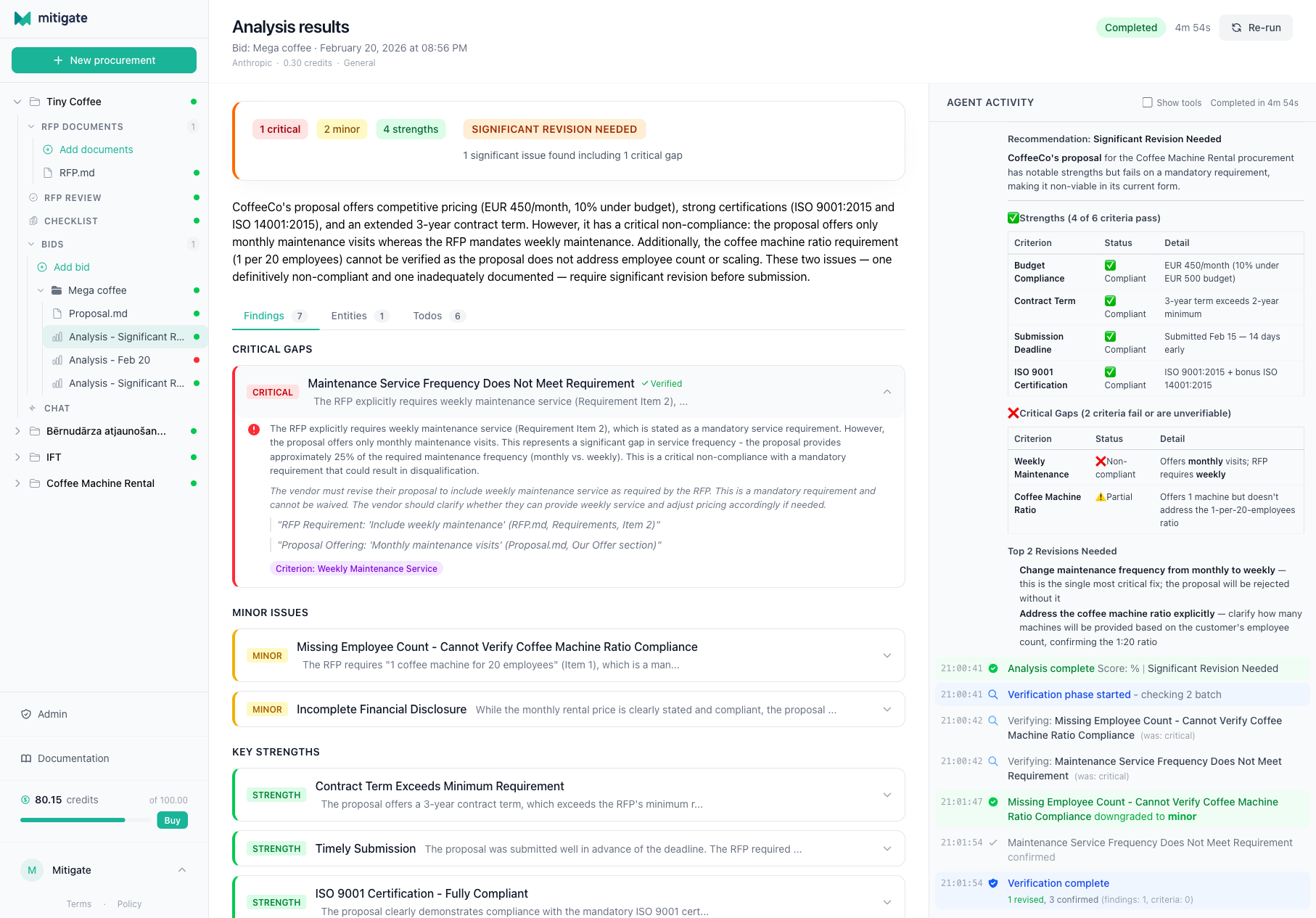
- Full description of what the AI found
- Recommendation for how to address the issue
- Evidence - exact quotes from the documents:
- From the RFP: the requirement being checked (e.g., "The bidder must hold a valid ISO 9001:2015 certification")
- From the proposal: what the vendor actually said (e.g., "Our company is currently pursuing ISO 9001 certification and expects to achieve it by Q3 2026")
- Provenance badge showing which agent identified this finding:
- Lead Analyst - the main orchestrator found this during overall analysis
- Criterion: [name] - a specialist agent found this while analyzing a specific evaluation criterion
- Lot [number]: [name] - a specialist agent found this while analyzing a specific lot
The evidence lets you verify the AI's reasoning yourself. If the quotes don't support the finding, you know to disregard it.
Verification status
For Critical and Major findings, the verification agent weighs in:
- Verified - a second AI confirmed the finding. Higher confidence.
- Downgraded - the verifier thinks it's less severe than initially assessed. The severity gets adjusted.
- Removed - the verifier concluded it's a false positive. You'll still see it, but it's marked accordingly.
Verification doesn't happen for Minor findings or Strengths - those are lower-stakes and don't need the extra check.
Agent activity panel
The right panel shows a chronological feed of what the AI agents did during analysis. You can see:
- Which documents the agents read
- What searches they performed
- When findings were recorded
- Verification outcomes
This is useful for understanding how the AI reached its conclusions. If a finding seems off, check the activity panel to see what the agent was doing when it raised that finding.
Criterion values
If you configured evaluation criteria before running the analysis, you'll see extracted values for each criterion:
| Criterion | Type | Value | Status |
|---|---|---|---|
| ISO 9001 certification | Pass/Fail | Not currently certified | Fail |
| Relevant experience (years) | Scored | 12 years | 85/100 |
| Proposed team size | Scored | 6 specialists | 70/100 |
Each value comes with its own evidence - the specific passage in the proposal that the AI used to determine the score.
This data powers the bid comparison feature available in the Compare & Export step.
Captured entities
The analysis picks up people and companies mentioned in the documents. You'll see them listed with:
- Name and role (e.g., "J. Smith - Project Manager")
- Type (person, company, organization)
- Registry match (for Latvian procurements) - if the company is in the official business register, you'll see its registration number, beneficial owners, and shareholders
This is useful for due diligence. You can check if a subcontractor is a real registered company, or spot potential conflicts of interest.
Run history
If you've run the analysis more than once on the same bid (for example, after updating documents or refining criteria), you can switch between runs using the run selector dropdown at the top of the results page. Each run is timestamped so you can track how results evolve.
The bid status card also shows a "N previous runs" link when multiple runs exist, making it easy to discover and compare past analyses.
Acting on results
Here's a practical approach:
- Read the strategic briefing first for the big picture
- Review all Critical findings - these are potential deal-breakers
- Go through Major findings - these need attention but aren't necessarily fatal
- Check the evidence for anything surprising - make sure the AI interpreted it correctly
- Scan Minor findings for anything you care about
- Review the Strengths - useful for your final evaluation
The AI is thorough but not perfect. It might flag something as critical that you know is acceptable in context (maybe the vendor discussed it in a meeting that isn't documented). Use the evidence to decide for yourself - the AI provides the data, you make the judgment.