Setting up a procurement
Creating your project workspace and getting organized before analysis.
A procurement is your workspace for one purchasing process. Everything lives here - the RFP, vendor bids, analysis results, comparisons.
Creating a new procurement
Click + New procurement in the sidebar. You'll see a modal with the following fields:
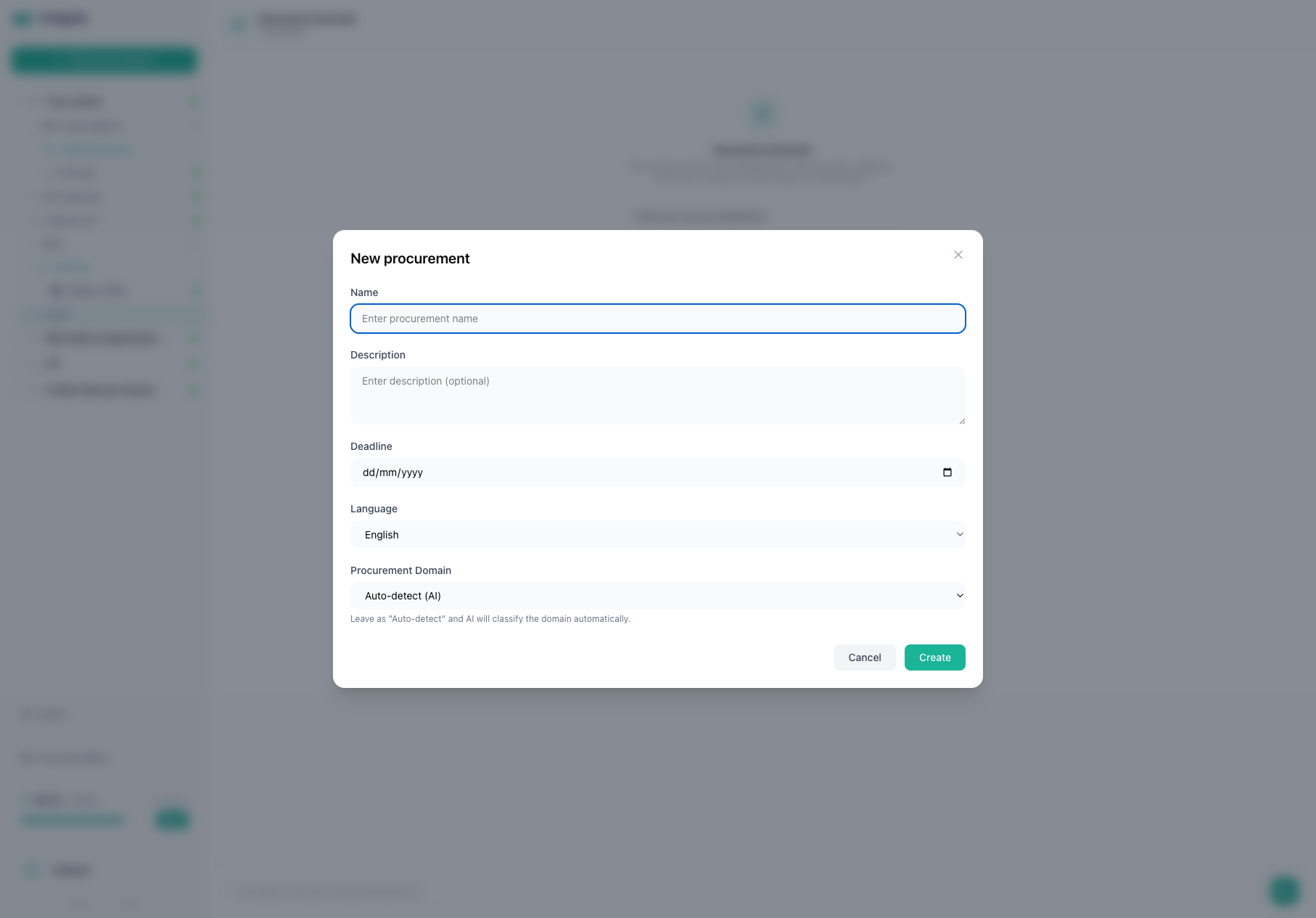
- Name - something descriptive. You'll see these listed in the sidebar, so "IT Infrastructure Q2 2026" is better than "Procurement 1".
- Description (optional) - add context if you want. Useful when you have many procurements running at once.
- Deadline (optional) - for your own tracking. The system doesn't enforce this, it's just a reminder.
- Language - English or Latvian. This tells the AI which language to use in its analysis report. Pick the language your documents are primarily written in.
- Procurement domain (optional) - if your procurement belongs to a specific industry like construction, you can select it here. The AI will apply industry-specific compliance rules during analysis. Leave it on "Auto-detect" and the AI will figure it out from your RFP. See domain-specific knowledge for details.
Hit Create, and you'll land on your new procurement workspace.
The guided workflow sidebar
When you open a procurement, the left sidebar shows a guided workflow — a list of steps that take you through the entire procurement analysis process:
| Step | Required? | What it does |
|---|---|---|
| Overview | — | Dashboard with summary stats and quick actions |
| Upload RFP | Yes | Upload and manage your requirement documents |
| Quality Check | Optional | AI reviews your RFP for clarity and completeness |
| Prep Checklist | Optional | AI generates a preparation checklist from your RFP |
| Evaluation Criteria | Optional | Define scoring rules for structured comparison |
| Lots | Optional | Configure multi-lot procurement structure |
| Analyze Bids | Yes | Run AI analysis on vendor proposals |
| Compare & Export | — | Compare results side by side and export to Excel |
| Chat | — | Ask questions about your documents |
Each step shows a status indicator:
- Green checkmark — completed
- Colored dot — active/available
- Spinning loader — currently running (e.g., analysis in progress)
- Red X — failed (can be retried)
- Dashed circle — not yet available (prerequisites not met)
Suggested next
At the top of the workflow, a "Suggested next" banner tells you the most logical next action based on your current progress. Follow the suggestions and you'll never get lost.
Bids section
Below the workflow steps, you'll see a Bids section listing all vendor bids. Click the + button to add a new bid, or click a bid name to view its documents and analysis results.
The top bar
The top bar is always visible and gives you quick access to:
- Console — your home dashboard with recent activity and quick-start actions
- Organization switcher — switch between organizations (if you belong to multiple)
- Credits — your current balance and a Buy button
- Language toggle — switch the interface between English and Latvian
- User menu — profile settings, AI provider selection, admin panel, documentation, and sign out
Editing and deleting
You can edit a procurement's name, description, deadline, and language at any time from the Overview page. Click Edit in the top-right actions.
Deleting a procurement permanently removes it from your workspace. All uploaded documents, bid files, and analysis results are deleted and cannot be recovered. Credit usage history is preserved for billing transparency. Export any results you want to keep before deleting.
A note on organization
If you're working on a large procurement with multiple lots, you still create one procurement for the whole thing. Lots are configured inside the procurement (via the Lots step in the sidebar), not as separate procurements. See evaluation criteria and lots for details.