Quick start
Your first analysis in about 10 minutes.
This walkthrough gets you from zero to a full compliance report. You'll need an RFP document and at least one vendor proposal.
Create a procurement
After logging in, you land on the Console — your home base showing recent activity and quick-start action cards. Click Analyze Bids on the Console to create a new procurement pre-configured for bid analysis. Alternatively, click + New procurement in the sidebar.
Fill in a name that makes sense to you (e.g., "Server Room Upgrade Q2"), pick the language your documents are in, and optionally choose a procurement domain or leave it on Auto-detect.
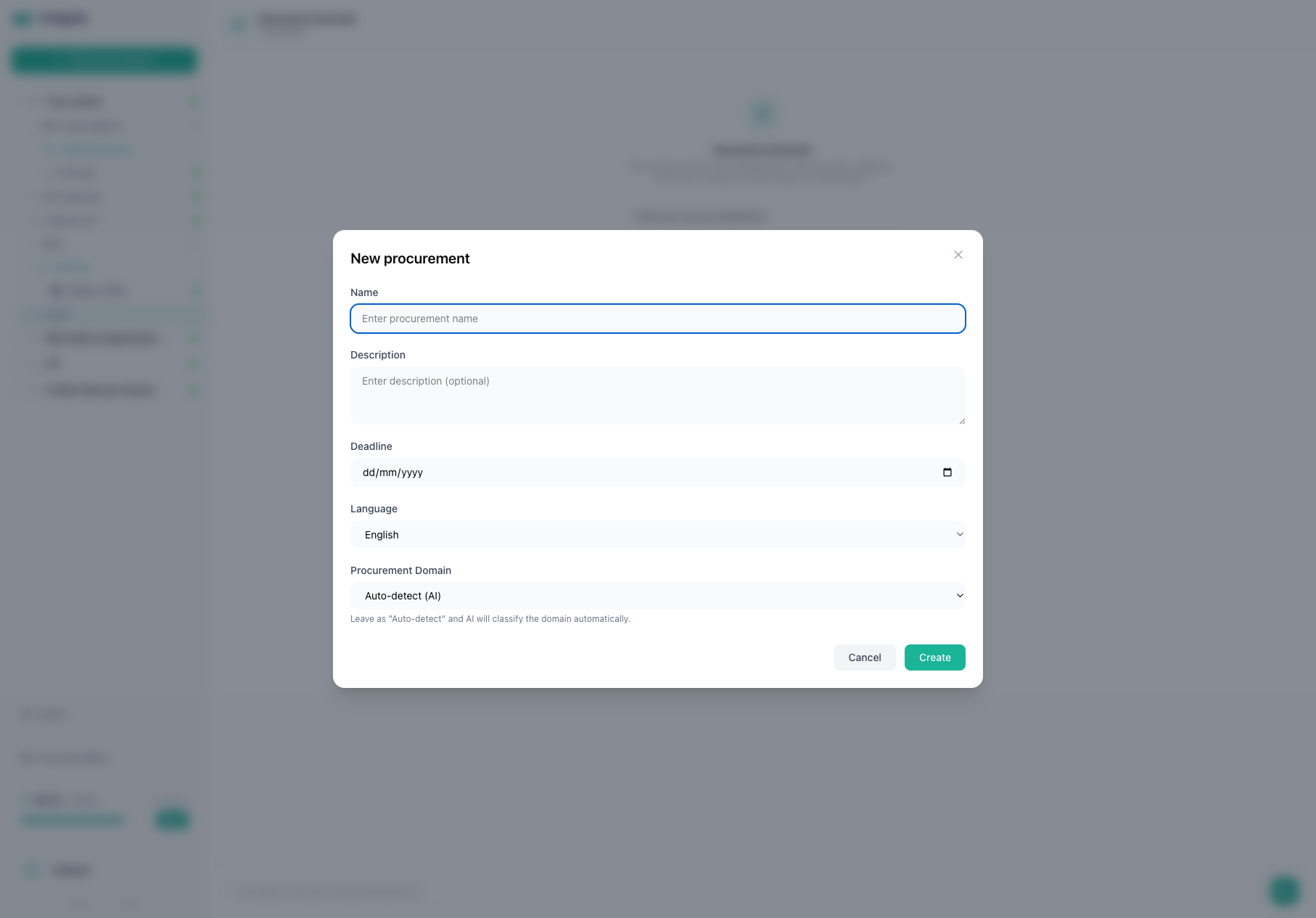
Once created, you'll land on the procurement Overview page. The left sidebar shows a guided workflow with all the steps you can take — each one lights up as it becomes available.
Upload your RFP documents
The sidebar will suggest Upload RFP documents as your next step. Click it to open the RFP upload view.
Drop your requirement documents into the upload area. PDF, Word, Excel, PowerPoint - all work. You can upload multiple files.
Each file goes through parsing, which converts it into text the AI can read. You'll see a status indicator next to each file:
- Pending - queued for processing
- Parsing - being converted right now
- Completed - ready to go
- Failed - something went wrong (see troubleshooting for fixes)
Wait until all files show Completed before moving on. The sidebar will update to show a green checkmark next to "Upload RFP" when done.
Add a bid
In the sidebar, look for the Bids section below the workflow steps. Click the + button to add a new bid. Enter the vendor's name, then upload their proposal documents the same way. Wait for parsing to finish.
Run the analysis
Click Analyze Bids in the sidebar workflow. You'll see a card for each bid with its status. Hit Run Analysis on the bid you want to review. If you have multiple bids, you can also use the Analyse All button to start analysis on all eligible bids at once.
The AI gets to work — you can watch progress in the agent activity panel on the right side. You'll see which phase it's in and what it's doing in real time.
Occasionally the AI may pause and ask you a clarification question — for example, if it can't find a specific document reference. You'll see an input form where you can type your response, and the analysis will resume automatically.
A small procurement (30-50 pages total) usually finishes in 5-10 minutes. Larger ones with hundreds of pages can take up to an hour.
Review your results
Once the analysis finishes, click the bid name in the sidebar or use the View Results button. You'll see:
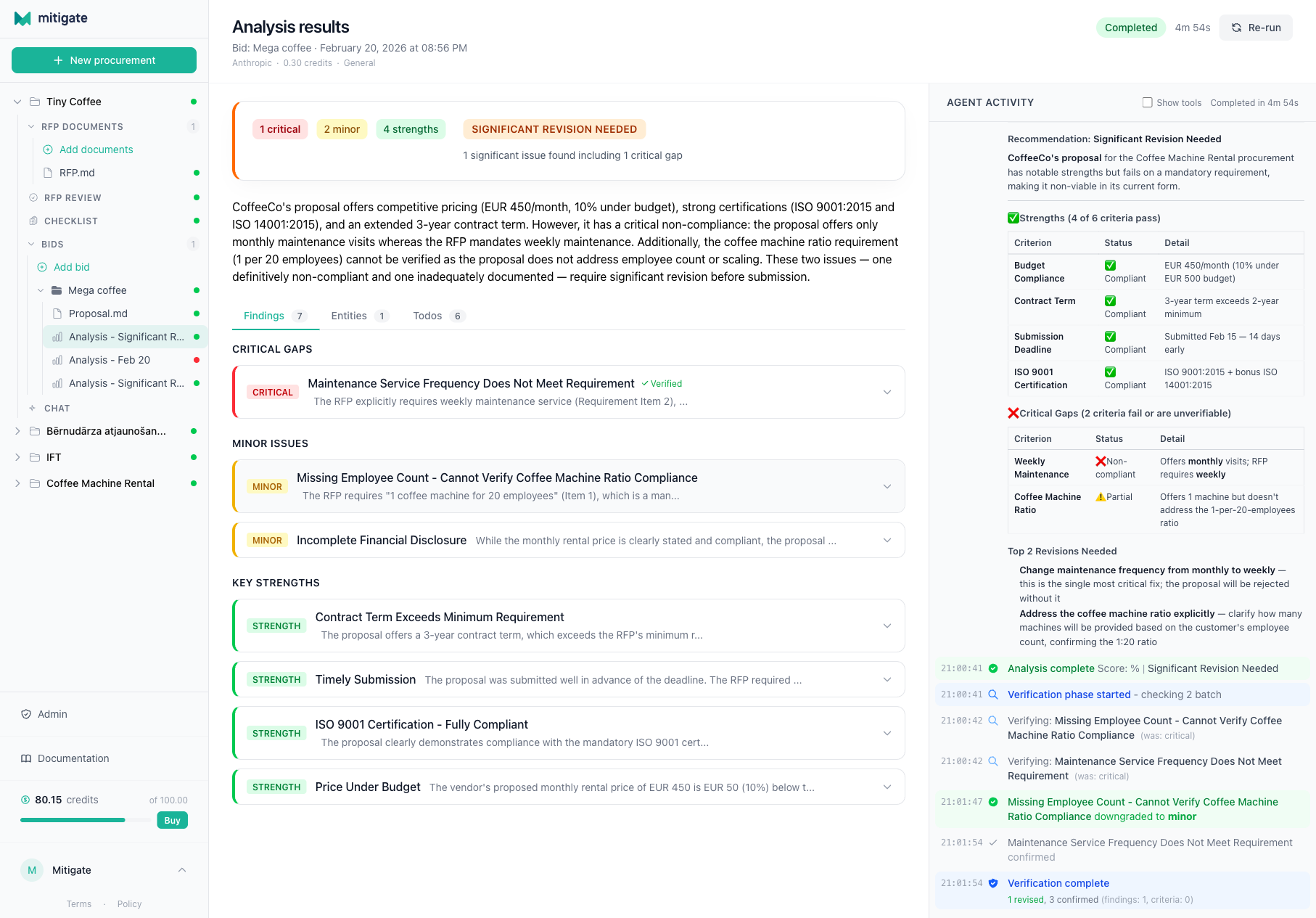
- Recommendation verdict at the top — the overall recommendation with finding counts and an executive summary
- Findings tab — issues sorted by severity (start with Critical and Major, these need attention), each with evidence quotes from the documents
- Entities tab — persons, companies, and organizations mentioned across the documents
- Todos tab — the agent's internal task list showing what was analyzed
If you run analysis on the same bid again, you can switch between runs using the run history dropdown at the top of the results page.
That's it. You've got your first compliance report.
What to do next
Now that you've seen the basics, explore the optional workflow steps in the sidebar:
- Quality Check — review your RFP for clarity and completeness before publishing
- Prep Checklist — generate a list of what to prepare for bidding
- Evaluation Criteria — set up scoring rules for structured vendor comparison
- Lots — define procurement lots for multi-lot tenders, so the AI can track which lots each vendor is bidding on
- Compare & Export — compare multiple vendors side by side and export to Excel
- Chat — ask questions about your documents with cited answers
Setting up evaluation criteria before running analysis gives you much richer results. The AI will extract scores for each criterion, making it easy to compare vendors objectively. It takes a few minutes to configure and is worth the effort on any serious procurement.