Refining your analysis
Re-running analysis, responding to clarification requests, and getting better results.
Sometimes the first analysis isn't the last. Documents get updated, you realize you forgot to set up criteria, or you want to dig deeper into something specific.
When to re-run analysis
Good reasons to re-run:
- Vendor submitted updated documents - they fixed issues you flagged, or sent additional materials
- You added or changed evaluation criteria - new criteria need a fresh analysis to extract values
- You added lots - the analysis needs to re-examine bids through the lot structure
- Documents were re-uploaded - maybe you had the wrong version of a specification
Not-so-good reasons:
- You don't like the results - re-running the same documents won't change the findings substantially. AI analysis is largely deterministic for the same input.
- One finding seems wrong - check the evidence first. If the AI genuinely misread something, a re-run might produce the same mistake. Contact support if you think there's a systematic issue.
How to re-run
Go to Analyze Bids in the sidebar workflow and click Run Analysis on the bid again. A new analysis starts from scratch using the current documents and criteria. The previous results stay available for reference.
Each re-run costs additional credits based on the document size and complexity. It's the same cost as the original analysis.
Responding to clarification requests
Occasionally, the AI needs your help during analysis. Maybe a document references an appendix that wasn't uploaded, or there's ambiguous language the AI can't resolve on its own.
When this happens:
- The analysis pauses automatically
- You'll see a question displayed on the results page
- Type your answer and submit
- The analysis resumes, incorporating your response
Check back periodically if you're not watching the analysis live. A clarification request just sits there waiting until you respond.
Batch analysis
If you have multiple bids to analyze (or re-analyze), use Analyse All on the Analyze Bids page. This queues up every bid and runs them one after another.
Batch analysis is useful when:
- You've just added 5 new bids and want to analyze them all
- You changed criteria and need to re-run everything
- You have a deadline and want all analyses done without babysitting each one
The analyses run sequentially (one finishes, the next starts) and you can see progress on each.
Using AI chat
The Document Assistant lets you have a conversation about your procurement. It searches your RFP, bid documents, and analysis results to answer your questions - so you can get specific information without digging through pages manually.
Click Chat in the sidebar workflow to open the Document Assistant.
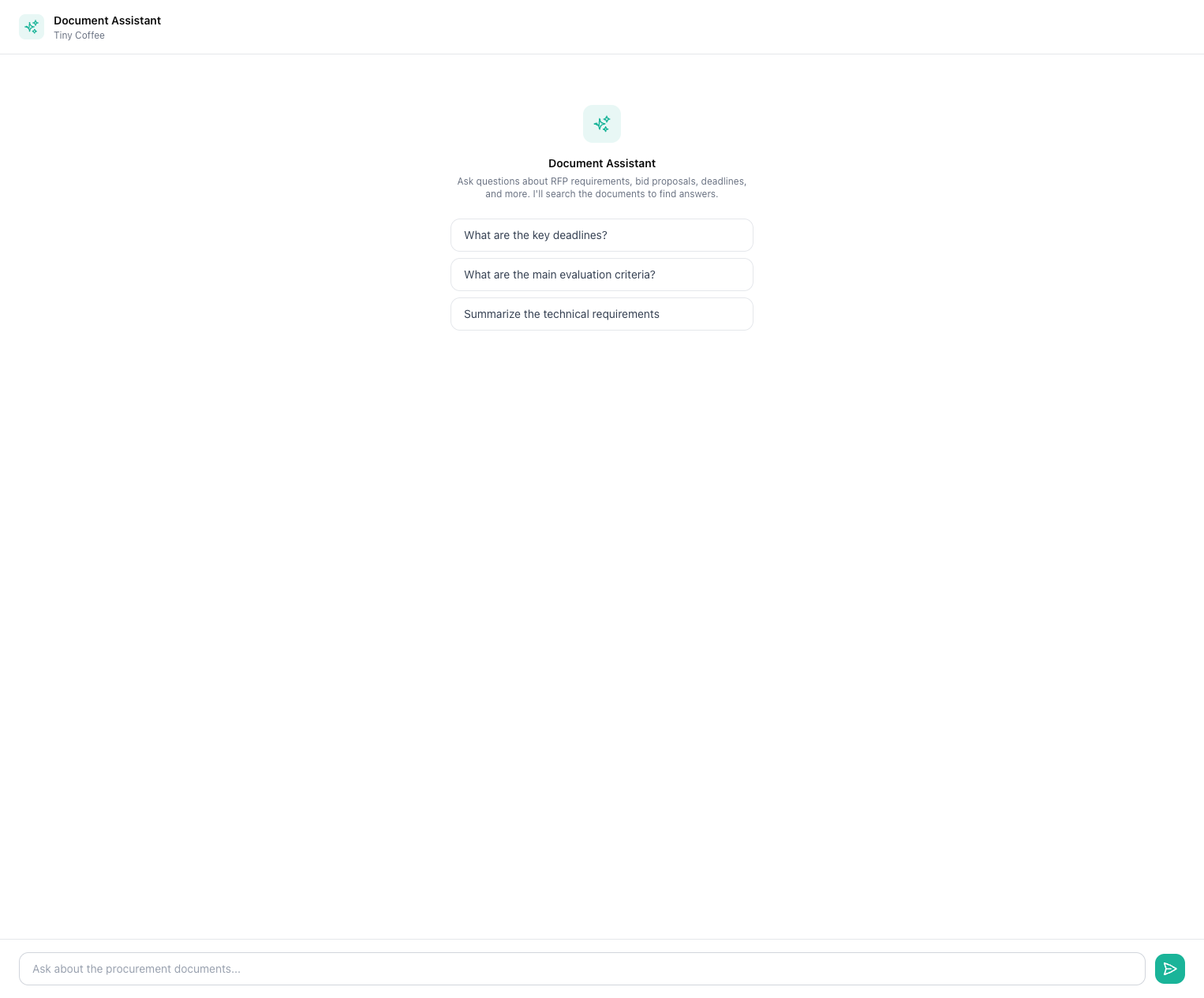
Type your question in plain language and hit Enter. Some examples:
- "What are the key deadlines?"
- "What does Vendor A say about their delivery timeline?"
- "How do Vendor A and Vendor B compare on team experience?"
- "What evidence supports the 'missing financial guarantee' finding?"
When you first open the chat, you'll see a few suggested questions tailored to common things people look for - deadlines, evaluation criteria, technical requirements.
Inline citations
Every answer includes inline citations - numbered references like [1], [2] that link to the specific source documents. You can verify answers by clicking through to the source, find the exact passage referenced, and share specific references with colleagues during evaluation.
If an answer doesn't include citations, treat it with more caution - the AI may be reasoning rather than quoting.
What the chat can't do
The chat is read-only. It can explain, summarize, and compare, but it can't change analysis results, re-analyze documents, access other procurements, or make decisions for you.
The chat works best when you're specific. "Tell me about Vendor A" is fine but broad. "Does Vendor A meet the staffing requirements in Section 4.2?" gets you a more useful answer with precise citations.
Getting better results
A few things that noticeably improve analysis quality:
Upload everything. If the RFP references appendices, forms, or standards - upload them in the Upload RFP step. The AI can only check requirements it knows about.
Set up criteria first. Configure criteria in the Evaluation Criteria step before running analysis. Analysis with criteria is more focused and produces richer results than a general compliance check.
Clean up your documents. If a 300-page proposal includes 100 pages of standard marketing material, that's noise. The AI has to process it, and it costs you credits. If possible, upload only the relevant parts of very long documents.
Use clear file names. "Technical_Proposal_CompanyX.pdf" is better than "Document_v3_final_FINAL.pdf". The AI sees file names and uses them for context.
Each analysis run is independent. Re-running doesn't build on previous results - it starts fresh. This means you always get a clean assessment of the current state of the documents.